User Interface
The interface for the PDRDrugs application is very simple. There are 3 main views to the program:
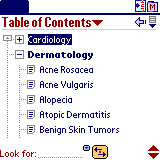
Table of Contents View
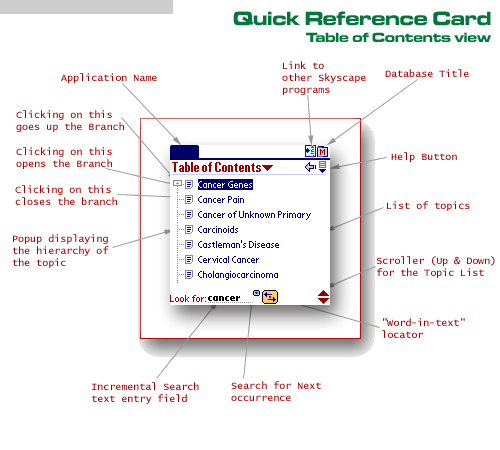
This view displays the Table of Contents as displayed in the text book, with a facility to find the desired topic using Skyscape's incremental search functionality.
You can search for topic names by typing the characters on the dotted lines near the "Look for". For example if you are looking for topics starting with "Cancer" and when you type in Cancer you will come up with a screen as shown below.
List View
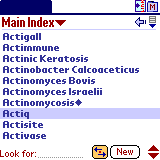
This view displays the index list of topics in alphabetical order, with a facility to find the desired topic using Skyscape's incremental search functionality.

List and Smarttabs View
In order to select a topic, just tap on the name of the topic in the list. In the above list, if you tapped on the topic Actiq, you will see the monograph which contains the discussion of this topic.
Often when you click on a topic name there might be more than one topic that corresponds to an item clicked (some subjects might be discussed in several places). You will be presented with a popup showing alternative topics. As an example, the following sequence shows the list showing "Acute Alcohol Withdrawl". If you clicked on that term, you would see a popup showing items that have "Acute Alcohol Withdrawl" in the discussion. You may click on any of the topics and go to the desired topic quickly.
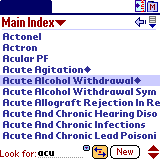
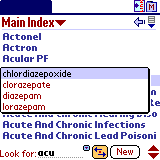
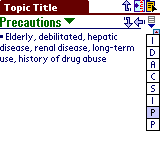
Multiple Topics for a single Medication
In order to find the desired topic or medication in the list view, you may scroll the list up or down using the scroll buttons on the device, or the scroll graphic on the screen. When you use the buttons, the list scrolls by one screen at a time. By using the graphic scroller, you move by one topic at a time.
However, given that there will be thousands of entries in the list, it is not practical to scroll up or down, until you find the desired topic. You can start typing the name by using the graffiti character set, and the system will find the name that matches the partially typed string. In most cases you will find that you will come close to the desired topic, just by typing two to four letters of the topic. See the following sequence to see how the list is adjusted based on your input:
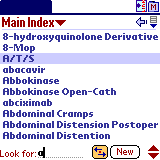
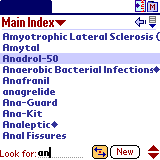
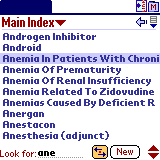
Incremental Search in the List View
If you are not familiar with the graffiti character set, a handy menu option will display the help for the graffiti symbols (using Edit->Graffiti Help menu item).
Word in Text Search
If you are not familiar with a particular term and whether it begins the term
you are looking for, then you can use the feature called "Word in
Text" which allows you to search the sequence of characters you have typed
anywhere in the index. This is done by just typing the word in the "Look
for:" field as you would otherwise. Then tap the button next to the field
(this looks like a button with a left and right arrows stacked around a
"."). When you tap it for the FIRST time after entering any
characters, the system will start the search from the beginning of the index
(alphabetically), and find the first term that contains your typed sequence. If
you tapped on the "Word in Text" button AGAIN, you will be
taken to the NEXT topic that contains the typed word. You can do this
repeatedly, until you exhaust all topics (in which case there will be a beep
sound).
The following shows the sequence for the word insulin, by typing the word "insulin", which is sufficient for the search. As you type, it you will be taken to the term Adjunct to Insulin in Selected Patients. Let's say you want to find other occurrences of the term within the topic names and not in the beginning as in this case. You can tap on the Word in Text button repeatedly and see some of the matches as seen below.
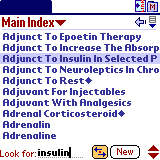
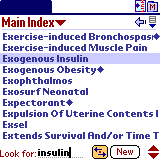
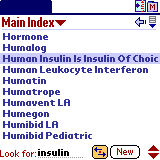
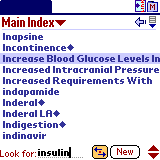
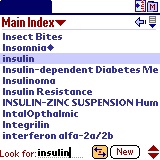
Word in Text search
Menus
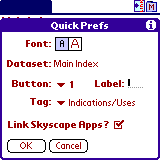
Menu is provided to display the information about the product, as well as
setting the preferences for font size/style and setting the order of tags
displayed in the Smart tabs view. The preference setting is discussed in the
chapter titled "Setting Preferences".
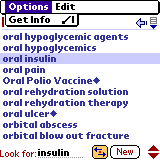
List Menu
Preference Dialog
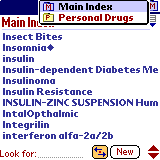
On the upper right hand corner of the List view, is a dataset name, that will be displayed. If you tap on the name, it may present one or more names in a pop-up list.
Dataset categories
On the upper left hand corner of the List view, is a dataset name, that will be displayed. If you tap on the arrow beside the dataset name, it may present one or more names in a pop-up list.
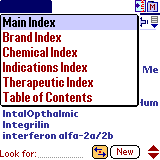
Index categories
Smarttabs view
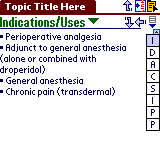
This view presents information about the selected topic in a structured manner. The program automatically separates the monograph text into distinct pieces of information found by tapping the right hand button that corresponds to the section desired.
Important Note: The sections shown in the picts is for illustration purposes only. The product and dataset you have installed may include different sections of the monograph
It is possible to change the order and label of these sections using the preference dialog discussed in the chapter "Setting Preferences".
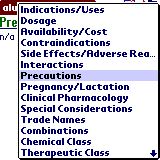
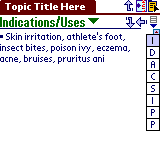
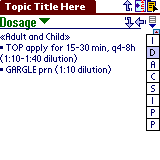
Smart tabs View
Sometimes, the name of the topic will be bigger than what can be displayed on the title line comfortably. Or you would like to find out where you are in the hierarchy of the book. To see this information, just tap on the title area (The white text on black area at the top of the screen). You will see the the location of the current topic, and the topic surrounding it. By tapping on the arrow button on the far right side of a truncated title, you can see the full title. Tapping on another topic or level will display that topic or level. If a level has no topic associated with it, nothing will happen
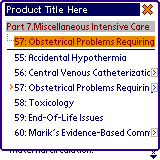
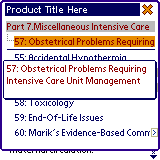
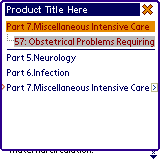
In the case your product does not have a table of contents, this dialog is not available and tapping on the title will simply display the full title.
As you see, this view helps you to locate the needed information quickly and effortlessly. You enter this view by tapping on a topic name from the master topic list. Any time you want to change the topic being displayed, you tap on the "page" like icon (incremental search) in the upper right hand corner. This will switch the view to the List View, allowing you to select a different topic.
Tapping the menu button will present you with different menu options including the corresponding short-cuts.
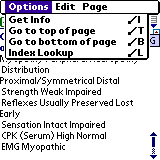
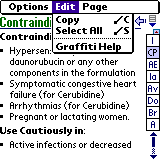
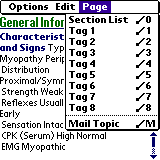
Smart tabs View Menu
A variety of actions can be taken at this point. You can highlight the text (select) and use Cut/Copy/Paste options to transfer the information between different pilot applications. Note that Cut will not function, if the topic being displayed is read-only.
The tags menu items refer to the buttons on the right that allow you to switch between different parts of the monograph. You may use the graffiti shortcuts to switch between different sections, without having to carefully tap the individual buttons.
Some features or menu items may differ in the version you may have acquired. This does not indicate any error.